Blog

  • Fixing Featured Posts Not Showing on Your WordPress Homepage

    The Problem

    A client approached us after noticing that posts labeled as “Featured” or featured content were no longer showing on their homepage or featured area. They were using a custom category called “Featured Post” to organize and display these posts—but even after applying the correct category to new posts, the homepage, post section, or block remained empty.

    To make matters worse, their WordPress dashboard, WordPress admin, or admin area had become cluttered—columns were misaligned, and the “All Posts” screen, screen, or post editor was hard to read.

    Diagnosis

    After auditing the site, our developers found that:

    • The “Featured Post” category was still functioning as expected.

    • The homepage used a page builder, page builder module, Elementor, or library module (like Divi or WPBakery) to display those posts.

    • That specific module, template, or display module had stopped pulling content, pulling posts, or pulling featured image option from the “Featured Post” category, likely due to plugin updates, theme updates, configuration, conflict, or misconfiguration.

    In short, the post content was there—but the tool showing it had broken.

    ✅ The Fix: Swap Out the Module

    Rather than spending hours troubleshooting, troubleshooting, or debugging the old module, we took a simpler route:

    • We replaced the existing Posts display module, display, or block with a more stable one from the builder’s library.

    • Reconfigured it to fetch posts, pull content, or pull featured images from the “Featured Post” category.

    • Matched the styling, layout, or appearance so the layout remained visually consistent.

    This fresh setup bypassed the broken logic, restored visibility, and future-proofed the section, section, or featured area against plugin hiccups, error, or theme conflict.

    Want smoother WordPress layouts? Book a quick call.

    Bonus Fix

    The client also struggled with a messy “Posts” screen, screen, or post editor in the admin panel. Here’s what we did:

    • Used the Screen Options menu (top right of the admin area).
    • Hid unnecessary columns and enabled only the relevant ones.
    • Increased the number of posts displayed per page for easier management.

    Small tweak—big difference in usability.

    Need help cleaning up your dashboard? We’ve got you.

    Why This Works

    WordPress page builders rely on display modules to pull and show content. But when:

    • Plugins update
    • Theme conflicts arise
    • Caching interferes
    • Or modules simply break

    your front-end content can vanish even if everything else is set up correctly.

    Starting fresh with a new module ensures cleaner queries and fewer bugs.

    Need Hands-On Help?

     If your homepage layout, homepage, section, featured area, or block isn’t doing what it should—whether it’s broken post sections, weird formatting, post not showing, or content not pulling.

    We help you clean up the backend, streamline the frontend, and make sure everything just works.

  • Fixing Event Calendar Display Errors After Theme Updates

    What Went Wrong

    After updating both the theme and TEC plugin, the events archive page (e.g., /events/) showed a blank screen or 404 errors. The issue stemmed from a compatibility conflict between the theme’s archive layout, template overrides, and TEC’s rendering logic for upcoming events or dynamic content. This often happens after plugin or theme updates, plugin updates, or upgrading your WordPress theme without staging environment testing.

    How We Diagnosed It

    ✅ Tested on staging first

    We replicated the issue on a staging site, staging environment, or stage to avoid affecting the live site. Screenshots and browser inspection helped reproduce the issue.

    ✅ Checked known conflicts

    Forum threads, Themeco forum, and WordPress.org knowledgebase revealed a known issue between newer Impreza theme versions, theme-specific layout, and TEC’s archive view templates or default events template.

    ✅ Isolated the problem

    Blank screens typically mean a PHP error, template conflict, or custom code issue—especially when it only affects a dynamic page, events page, or calendar view like /events/.

    What Fixed It

    1. Synced all updates

    We updated both the Impreza theme, theme update, and The Events Calendar plugin, events calendar plugin, events calendar plugins, or events calendar pro to their latest version. Partial updates or previous version roll back can cause functionality issues.

    2. Switched archive templates

    Under display settings, display, or template overrides, we changed the archive layout to “Default Events Template” instead of the theme-integrated option or events template override. This resolved display issues in list view, style, or CSS.

    3. Cleared cache and reset permalinks

    We flushed caches and re-saved permalinks via Settings → Permalinks to ensure proper routing.WordPress dashboard to ensure proper URL routing and front end display.

    4. Applied fix to live site

    Once confirmed on staging site, staging environment, or stage, the changes were safely mirrored on the live site, live site front end, or front-end view without disrupting new events or dynamic content.

    Final Result

    The events archive now loads properly with no blank screens, broken views, or 404 errors. Keeping both the theme and TEC updated, using the right template display settings, and monitoring plugin or theme updates ensures stable functionality, restores event calendar functionality, and allows the page editor or builder to render content correctly.

    Need Help with Plugin Conflicts?

    We help WordPress sites stay stable after updates—no broken layouts or missing content.

    Talk to Integriti Studio — your experts in theme + plugin compatibility.

  • Ensuring Complete Visibility in Custom Post Type Searches

    The Problem

    On a WordPress site powered by CPTs and custom post types in WordPress, a recently re-published listing failed to appear in specific filtered views, custom search forms, and WordPress search results, despite being publicly accessible on its individual page. This often happens when:

    • Key custom fields that power filters are left empty
    • Query logic relies on future-dated schedules
    • Filters are stacked in a way that excludes incomplete records
    • Cache or replication delays skew the frontend display

    What We Found

    To isolate the issue, our team at Integriti Studio reviewed the content setup, content types, and filtering logic:

    ✅ Custom Field Checks

    One required custom post type content field—used by the filter system to group CPTs—was empty. Because the query expected a value, this post was silently skipped in WordPress search results and post type archives.

    ✅ Filter Query Debugging

    The PHP behind the filter logic (functions.php file) was relying on meta_query conditions that excluded empty fields. The logic also compared scheduling dates, which can block visibility if not configured properly in your WordPress theme or template.

    ✅ Display Context Audit

    The post was missing from filtered lists, custom post types manually displayed, or post type archives but appeared on its standalone page, default post types, and in some unfiltered queries. This inconsistency confirmed that the filtering code—not post status—was to blame for content display issues on your WordPress site.

    How We Fixed It

    1. Populated Required Fields

    We ensured the post had a valid value in the “all centers” field, custom post type using filters, or add your custom post setup so it would be picked up by filters expecting that key.

    2. Adjusted Conditional Logic

    Updated the custom template, template, or PHP code to include posts if they met a valid future date condition, appropriate assignment, or location taxonomy.

    3. Ordered Output Clearly

    Added a fallback orderby parameter to maintain predictable sorting (like alphabetical order), improving both user experience, UX, and debugging clarity.

    4. Cleared Caches and Retested

    Purged all plugin, server, and object caches. Then tested the result in:

    • Global site search
    • Filter-based listings
    • CPT archives
    • Location-based views

    The Result

    The entry now displays as expected across all views. This fix ensures future posts won’t fall through the cracks due to incomplete fields, custom post types not appearing, or overly strict filters—keeping directories complete and content on your WordPress site accurate.

    Struggling with CPT Search and Filters?

    We help WordPress sites avoid broken listings and patchy search results with clean, scalable logic.

    Get in touch with Integriti Studio — and make every listing count.

  • Displaying Accurate Price Ranges for Variable Products in WooCommerce + Algolia

    What’s the Issue?

    Variable products are supposed to display a price range (e.g., variable product price range or full price range) on WooCommerce category pages. But sometimes, especially with products with multiple variations or new product entries, only the starting price appears. This happens when the minimum price, variation price, and variable product price values aren’t being synced properly between WooCommerce and Algolia search integration.

    Other symptoms might include:

    • Missing or incorrect sale prices
    • Price formatting errors (like $108.5 instead of $108.50)
    • Products showing $0.00 due to stale or invalid data

    How to Fix It

    1. Update Your Algolia Index

    Make sure variation prices, minimum price, and price of the product fields are being pushed to Algolia during product indexing. If they’re missing, category pages won’t be able to display the price range display or display variable product properly.

    Use bulk update methods like wp_update_post(), admin batch edits, or custom code snippets to trigger a full sync.

    2. Fix the Price Template Logic

    Edit your WooCommerce theme or builder templates so that:

    • The full price range displays when min and max values differ
    • Sale prices are shown clearly with correct formatting
    • Single-price products don’t show ranges unnecessarily
    • Decimal formatting stays consistent at two places

    3. Improve Sale Price Sync

    WooCommerce sometimes fails to notify Algolia when scheduled sales go live. Include price of the product and discount fields in the product index and modify your frontend logic, custom code, or WooCommerce’s default templates to account for these dates instead of relying on default sale status.

    4. Handle the Edge Cases

    Look out for older product entries, database irregularities, or default settings. Add logic to handle:

    • Missing price values
    • Outdated variations
    • Incorrect formatting caused by import or plugin issues

    Clear all cache layers once the fixes are implemented to ensure updates appear live and WooCommerce will display or WooCommerce will show the correct price range in WooCommerce.

    ✅ What You’ll Achieve

    After fixing the indexing and display logic:

    • Your category pages will accurately reflect price ranges and sales
    • Customers won’t get confused by misleading pricing
    • Algolia and WooCommerce will stay properly synced—automatically

    Need help cleaning up your price logic or syncing search with WooCommerce?

  • Declutter Your WordPress Dashboard with Smarter CPT & Field Cleanup

    At Integriti Studio, we helped one client streamline their WordPress site by removing outdated CPTs and fields—making the admin area cleaner, simpler, and easier to manage within the WordPress dashboard and admin dashboard interface.

    The Problem

    • Old CPTs that were no longer active or useful
    • Custom fields still showing up in editors, but not tied to any current template, layout, or content types
    • Editors overwhelmed by irrelevant options, dashboard widgets, menu items, and messy interfaces

    It was time for a cleanup.

    ️ What We Did

    Identified & Removed Unused CPTs

    We audited all existing custom post types, confirmed which were obsolete, and safely removed them from the theme, plugin code, and any core WordPress installation or premium addons. This reduced clutter, unnecessary database queries, and duplicate content types.

    Cleaned Up Outdated Custom Fields

    All registered custom fields were reviewed. Unused, redundant, or unnecessary fields were removed, especially those that made editing pages and posts, admin area, or editors harder for the team. Custom CSS and meta fields were also checked for visibility and functionality.

    Improved the Admin Experience

    Post and page editors now see only the fields they need, with full control over workflow, screen options, and UI elements. That means fewer clicks, less confusion, faster publishing, and a user-friendly, intuitive interface for administrators and subscribers.

    Safe Testing & Rollout

    Everything was tested in staging first—no surprises. Using tools like a checker and toolkit, we confirmed all functionality, addon compatibility, and plugin settings. Once validated, we deployed the clean version to the live WordPress site with zero disruption, ensuring seamless integration with front-end display, URL structures, and WooCommerce if installed.

    The Results

    • A clean, user-friendly admin interface
    • No more irrelevant fields or post types
    • Easier, faster content updates
    • Slight performance boost from reduced backend bloat

    Why Cleanup Makes a Difference

    • Less clutter = fewer mistakes
    • Better performance through fewer queries and a lighter database
    • Easier maintenance for developers and editors
    • Future-proof structure that’s ready for whatever’s next

    Want your WordPress backend to work with your team—not against them?

  • Blocking Spam: Smarter Ways to Secure WordPress Forms

    This guide walks you through real-world anti-spam tactics you can use right now—especially if you’re using WordPress form plugins on a dedicated WordPress site or WordPress website.

    What’s Really Causing the Spam?

    Most WordPress forms come with the basics, but not real protection or built-in spam features. A site owner came to us after noticing an uptick in spam submissions, spam entries, and form spam in WordPress—and it turned out their contact form, registration form, and other WordPress form plugins had no active modern anti-spam protection at all.

    That’s like leaving your front door wide open to spam bots, automated spam, or spammers using IP addresses, email addresses, and common spam patterns.

    Here’s How to Stop It

    Add Google reCAPTCHA

    One of the best spam prevention and anti-spam features to block bots.

    • Works with all major form plugins
    • Choose v3 (invisible) or v2 (checkbox)
    • Add your site keys in form settings
    • Activate across all important forms
    Use Akismet Anti-Spam

    A powerful anti-spam plugin that filters out spam automatically.

    • Integrates with Gravity Forms, WPForms, and Ninja Forms
    • Requires an API key (easy to set up)
    • Just toggle it on inside your form settings
    Enable Honeypot Protection

    Bots will fall into this trap—users won’t even know it’s there.

    • Available in most form plugins
    • Add it with one click from form settings
    • No CAPTCHA required for users

    Use Conditional Logic for Filtering

    Advanced but powerful.

    • Block submissions with certain keywords, flagged as spam, fake domains, or odd behavior
    • Examples:
      → Block if the message contains “viagra”
      → Hide the submit button if the email ends in .ru
    • Available in Pro versions of most form builders

    The Results?

    After applying these simple tweaks:

    • Spam dropped drastically
    • Real users had zero friction
    • Forms stayed clean, fast, and accessible

    Want to lock down your WordPress forms—without frustrating your users?

  • WordPress vs. Shopify: Which Platform is Right for You?

    WordPress vs. Shopify: Which Platform is Right for You?

    WordPress vs. Shopify: Which Platform is Right for You?

    Choosing the right e-commerce platform is crucial for online success. WordPress with WooCommerce and Shopify are two of the most popular website builders globally. Understanding their features, SEO capabilities, customization options, and custom vs off-the-shelf solutions will help you select the best platform to maximize online store growth and efficiency.

    What is WordPress?

    Over 40% of websites worldwide are powered by WordPress, an open source content management system. When paired with WooCommerce, it enables businesses to build fully customizable WordPress sites.

    Through custom WordPress development, companies can create a custom-built online store using custom themes, plugins and themes, third-party integration, and unique code. WordPress website development services help businesses tailor functionality, design, and branding to meet business objectives while improving online presence.

    What is Shopify?

    Shopify is a comprehensive e-commerce platform designed for small businesses. Its user-friendly drag-and-drop interface and pre-built templates simplify building a website, management, and scaling as your business grows.

    With Shopify app development, stores can expand features without dealing with custom code or complex maintenance, making it ideal for limited budgets.

    Key Differences Between WordPress and Shopify

    1. Ease of Use

    WordPress

    Offers unmatched customization but requires technical knowledge of hosting, design, and WooCommerce. Using WordPress also requires maintenance to avoid vulnerability and performance issues, especially when using templates and plugins.

    Shopify

    Extremely user-friendly and handles hosting, security, and updates automatically. An ideal off-the-shelf solution for beginners.

    2. Customization Options

    WordPress

    Provides almost unlimited customization through plugins, third-party tools, WordPress themes, and custom WordPress development. A fully custom WordPress website allows tailored solutions, advanced SEO, improved user experience, and designs tailored to your business.

    Shopify

    Uses pre-built platforms, themes, and apps. Experienced developers can add custom solutions, but customization is still limited compared to WordPress.

    3. Cost

    WordPress

    The CMS is free. Costs depend on hosting, pre-built WordPress themes, plugins, or custom web development. It’s flexible for different budgets but may require a higher initial investment if opting for fully custom development.

    Shopify

    Subscription-based (starting at $29/month). Costs increase with premium apps and transaction fees. Works best for those who prefer off-the-shelf solutions without complexity.

    4. SEO and Marketing Tools

    WordPress

    Excellent SEO through tools like Yoast and Rank Math. Ideal for content marketing, optimize performance, and long-term growth and success.

    Shopify

    Offers built-in SEO features and marketing tools. Good for beginners but less powerful than WordPress in terms of content management and deep customization.

    5. Scalability

    WordPress

    Highly scalable with proper hosting and professional support. Fully custom development can help you create websites that grow with your business.

    Shopify

    Built for scalability without worrying about servers or security. A great pre-built platform that ensures faster load times and smooth performance.

    When to Choose WordPress

    WordPress is ideal for businesses that:

    • Require extensive customization through WordPress website development services.
    • Want a store tailored to your business needs

    • Require strong blogging and content management

    • Prefer deep integration options and custom WordPress themes

    When to Choose Shopify

    Shopify is best for businesses that:

    • Prefer off-the-shelf themes and ready-made tools

    • Want a simple, user-friendly setup

    • Need built-in payments, shipping, and marketing

    • Plan to rely on Shopify app development for enhanced functionality.

    Real-World Examples

    WordPress Use Case

    A niche retailer wanting unique branding may choose WordPress with WooCommerce. Using custom WordPress development and custom code, they can build a store fully aligned with their brand identity and unique requirements.

    Shopify Use Case

    A beginner launching their first store may prefer Shopify. With pre-built themes, apps, and simple setup, they can focus on customers rather than technical tasks.

    Conclusion

    Both platforms are powerful. WordPress offers deep customization, custom-built solutions, and long-term scalability, while Shopify excels as a pre-built, off-the-shelf, easy-to-manage solution.

    To make an informed decision , carefully analyze your needs and think about engaging with expert Shopify developers or WordPress.

    Your choice depends on your business needs, budget, and technical skill level.Ready to launch a high-performing online store? Explore our custom WordPress development, Shopify services, and web solutions to build the best website for your business!

    Want your business to be seen and heard online? Explore our Services
     

    Frequently Asked Questions (WordPress vs. Shopify: Which Platform is Right for You?)

    WordPress vs. Shopify: Which Platform is Right for You?

    WordPress offers unmatched customization and flexibility, ideal for businesses wanting full control over design and functionality. Shopify excels in simplicity and eCommerce-focused features, perfect for those seeking a quick, secure, and scalable online store. Your choice depends on technical comfort, business needs, and growth plans.

    Which platform is better than Shopify?

    WooCommerce (with WordPress) is often better than Shopify if you want full control, lower long‑term costs, and customisation. It’s free to use, supports almost unlimited plugins and payment gateways, and gives you complete ownership of your data ideal for flexible, scalable and SEO‑focused stores.

    Can I switch from WordPress to Shopify?

    Yes, you can switch from WordPress to Shopify. The process involves migrating your products, content, and customer data, often using migration tools or expert services. Shopify simplifies store management, offers built-in hosting, and provides secure eCommerce features, making the transition smooth for growing online businesses.

    Is Shopify still a thing in 2025?

    Yes, Shopify is absolutely still a thing in 2025. Millions of businesses continue using it, its revenue and merchant base keep growing, and it’s still one of the most reliable, scalable eCommerce platforms. Brands choose it for ease of use, strong apps, and powerful sales features.

  • WordPress Users Beware – These Popular Theme Plugins Have Some Major Security Issues

    WordPress Users Beware – These Popular Theme Plugins Have Some Major Security Issues

    WordPress Users Beware – These Popular Theme Plugins Have Some Major Security Issues

    Introduction

    WordPress powers more than 40% of websites worldwide, making it one of the very most widely used content management systems. While it offers high flexibility and ease of use, WordPress security remains a very major concern, especially when it comes to WordPress plugins and themes. Many popular WordPress plugins contain high security vulnerabilities that hackers or cybercriminals exploit to gain unauthorized access, inject malicious code, or totally compromise website security.

    If you highly rely on WordPress custom development to enhance your WordPress website, understanding these security risks is crucial. In this blog, we’ll discuss the major security issues highly associated with some very popular WordPress themes and plugins, and how you can protect your site effectively.

    Why WordPress Theme Plugins Are Vulnerable

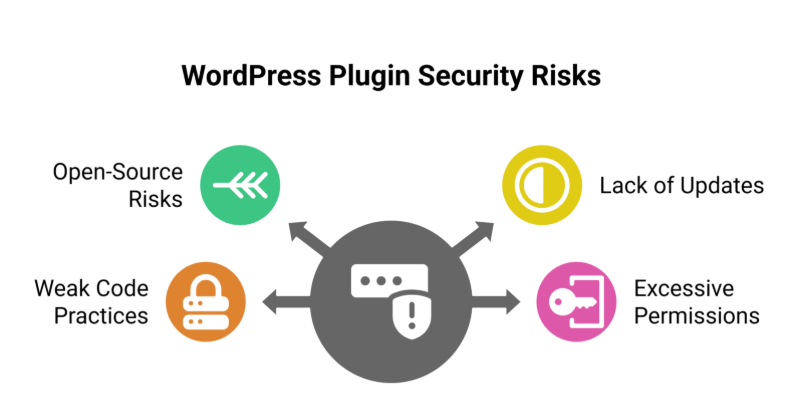
    1. Open-Source Nature

    WordPress is a totally open-source platform. This means anyone can develop and distribute WordPress plugins. While this encourages high innovation, it also highly increases the risk of very poorly coded or unmaintained plugins introducing security vulnerabilities that can be exploited by threat actors.

    2. Lack of Regular Updates

    Some WordPress plugins and themes are quite abandoned by their developers, leaving them highly vulnerable to common security threats. If a plugin is not updated regularly, security researchers warn that hackers can exploit outdated plugins to gain full control of the site.

    3. Weak Code Practices

    Not all plugin developers follow critical security practices. Very poorly written code can create many backdoors for malicious scripts, exposing sensitive data or allowing unauthorized access.

    4. Excessive Permissions

    Some popular plugin or WordPress themes request unnecessary permissions, giving them more access to your WordPress dashboard or admin accounts than required. This can be exploited by attackers to manipulate your site’s security or escalate login credentials privileges.

    Popular WordPress Theme Plugins with Security Issues
    Popular WordPress Theme Plugins with Security Issues

    1. Elementor

    Risk: Cross-Site Scripting (XSS) or SQL Injection

    Elementor is one of the very highly used WordPress plugins. However, it has faced multiple security vulnerabilities in the past. Hackers have used XSS and SQL injection tactics to exploit weaknesses in outdated versions of the plugin, leading to highly compromised WordPress websites.

    2. WPBakery Page Builder

    Risk: Remote Code Execution

    WPBakery is another popular WordPress plugin that has had plugin vulnerabilities, particularly involving remote code execution. Attackers have used this flaw to upload malicious code and take full control of the site.

    3. Revolution Slider

    Risk: File Upload Exploits

    Revolution Slider has been associated with major security breaches due to improper file upload validation. Unauthorized access via malicious scripts has been reported on many WordPress sites.

    4. Essential Addons for Elementor

    Risk: Arbitrary File Upload

    This plugin extends Elementor’s functionality but has vulnerabilities allowing unauthorized file uploads, posing a high risk to WordPress site security.

    5. Ultimate Addons for WPBakery

    Risk: SQL Injection Privilege Escalation

    This plugin enhances WPBakery but has been targeted by SQL injection attacks, compromising database integrity and allowing attackers to escalate privileges on WordPress websites.

    How to Protect Your WordPress Website

    1. Keep Plugins Updated

    Always update your WordPress plugins and themes to their latest versions. Developers often release security patches to fix exploited vulnerabilities. Ignoring updates leaves your WordPress site exposed to site takeover risks.

    2. Use Only Trusted Plugins

    Download plugins and themes from reputable sources like the official WordPress repository. Avoid third-party plugins or nulled versions, which often contain malware or other critical security flaws.

    3. Monitor Plugin Permissions

    Review the permissions requested by each plugin before installing it. If a plugin requests access to sensitive data or critical files, reconsider its use to keep your site secure.

    4. Implement Web Application Firewalls (WAFs)

    A WAF helps detect and block malicious code and attacks before they reach your WordPress website. Services like Cloudflare or Sucuri provide protection against common security threats.

    5. Regularly Back Up Your Website

    In case of a security breach, recent backups ensure you can restore your WordPress site without losing sensitive data. Use plugins like UpdraftPlus or BackupBuddy for automated backups.

    6. Remove Unused or Inactive Plugins

    Inactive WordPress plugins can increase your attack surface. Delete plugins that are not actively used to reduce potential security risks.

    7. Use Security Plugins

    Install security plugins like Wordfence or Sucuri to monitor malicious scripts, block attacks, and enforce critical security measures.

    8. Enable Two-Factor Authentication (2FA)

    Adding 2FA to your WordPress admin login provides an extra layer of protection, making it harder for hackers to gain unauthorized access.

    Conclusion

    While WordPress plugins and themes offer high functionality and design flexibility, they can introduce major security issues if not managed properly. By keeping plugins updated, using trusted sources, and implementing proactive security measures, you can protect your site from potential threats.

    If you rely on WordPress custom development, working with experienced security experts who follow best practices is essential. Prioritizing website security safeguards sensitive data and ensures a seamless experience for your visitors.

    Want your business to be seen and heard online? Explore our WordPress services and protect your WordPress website effectively.

    Want your business to be seen and heard online? Explore our Services
     

    Frequently Asked Questions (WordPress Users Beware These Popular Theme Plugins Have Some Major Security Issues)

    What are the security issues with WordPress?

    WordPress faces security risks due to outdated plugins, themes, and core files, weak passwords, and improper user permissions. Vulnerabilities like SQL injection, cross-site scripting (XSS), and malware attacks are common. Regular updates, strong passwords, secure hosting, and reliable security plugins are essential to protect WordPress sites effectively.

    Are WordPress plugins safe?

    WordPress plugins can be safe if sourced from trusted developers and regularly updated. However, poorly coded or outdated plugins may contain vulnerabilities, malware, or backdoors that hackers exploit. Always use reputable plugins, keep them updated, and limit unnecessary additions to ensure your WordPress site remains secure.

    Why are people moving away from WordPress?

    People are moving away from WordPress due to security vulnerabilities, frequent updates, and performance issues on large or complex sites. Many prefer simpler, faster, or more secure platforms with better scalability, built-in hosting, and easier maintenance, reducing the need for constant plugin management and technical troubleshooting.

    Which is the best security plugin for WordPress?

    The best WordPress security plugin is Wordfence Security, offering a firewall, malware scanning, login protection, and real-time traffic monitoring. Other strong options include Sucuri Security for cloud-based protection and iThemes/Solid Security for comprehensive site hardening, 2FA, and file-change detection. Choose based on site size and risk.



  • WordPress Development: Custom vs. Off-the-Shelf Solutions

    WordPress Development: Custom vs. Off-the-Shelf Solutions

    WordPress Development: Custom vs. Off-the-Shelf Solutions

    When it comes to building your business related WordPress website using WordPress themes, one of the very major challenges you’ll face is to choose either between the custom development or the off-the-shelf solutions. Each option particularly has its own advantages and drawbacks, and the better choice will depend on your business needs, budget, and the long-term goals. This blog totally explores the major differences between the two approaches to help you make a very informed decision while using WordPress for website development and improving your online presence.

    Understanding Off-the-Shelf Solutions

    What Are Off-the-Shelf Solutions?

    Off-the-shelf solutions are specifically pre-built themes, templates and plugins, and third-party tools that are quite easily available or can be purchased. These options are designed to meet totally different variety of customer needs and are quite easy to install and setup, making them ideal for people building a website with minimal initial investment.

    Benefits of Off-the-Shelf Solutions

    Benefits of Off-the-Shelf Solutions

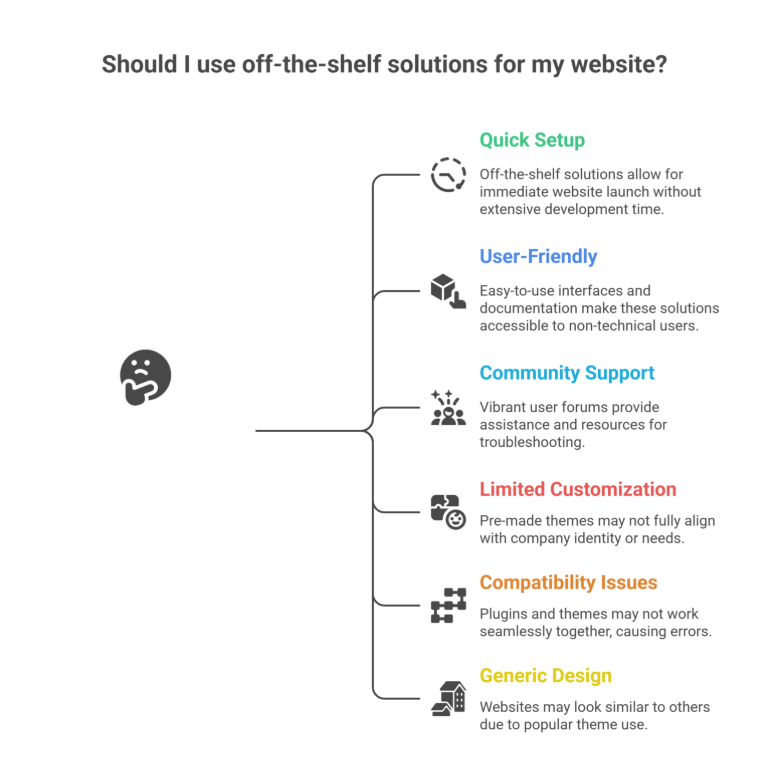
    • Quick Setup: Since all these pre-built WordPress solutions are quite easy to use instantly, you may launch your very own website right away without having to spend quite a lot of time and effort in developing it using custom code.
    • User-Friendly: Even a non-technical user can utilize a template or pre-built platforms because they frequently include easy drag-and-drop builders and comprehensive documentation, offering a user-friendly experience.
    • Large Community Support: The Well-known themes and plugins frequently have quite vibrant user forums and communities that offer helpful assistance and resources for troubleshooting, especially when dealing with performance issues, vulnerability, or integration problems.

    Drawbacks of Off-the-Shelf Solutions

    While off-the-shelf WordPress solutions are quite convenient, they come with some limitations:

    • Limited Customization: It’s quite possible that pre-made themes don’t always highly suit the identity or needs of your company or brand, especially when you need tailored solutions.
    • Compatibility Issues: Some plugins and themes might not always function highly together, causing errors in functionality.
    • Generic Design: Your website is more likely to seem like others if you use a very popular template or premium themes.

    Exploring Custom WordPress Development

    What Is Custom WordPress Development?

    Custom WordPress development basically means creating a website that is especially suited to your company’s personal requirements. Professionals providing Custom WordPress Development, custom web development, or working at a development company or WordPress web design agency, handle this particular procedure using unique code and custom solutions.

    Benefits of Custom Development

    • Unique Design: Since a customized website is created from the very scratch, it will accurately represent your brand identity and set you quite apart from the competition.
    • Tailored Functionality: You can incorporate particular unique features and functions that are quite essential to your company’s operations through the custom-built development that is fully tailored to your business.
    • Scalability: Because the custom-built websites are made to always grow with your business, adding new features or expanding your website as your business grows will be very simpler, ensuring long-term scalability and long-term growth.
    • Enhanced Performance: Custom websites frequently load quite faster and offer a much better user experience by removing the unnecessary code and focusing on your specific needs and requirements.
    • SEO Optimization: By including specific SEO guidelines directly into the website’s design, developers can highly increase the site’s exposure in the search engine results and help you optimize your content management system.

    Drawbacks of Custom Development

    Despite its advantages, custom development has some challenges:

    • Higher Initial Cost: Because the custom development takes much more time and experience than off-the-shelf options, it may require a higher initial investment.
    • Longer Development Time: If you need a new website launched very quickly, it might not be the very best option to build it from scratch.
    • Dependence on Developers: For immediate updates and frequent ongoing maintenance, you might require continuous assistance from a WordPress design or Shopify Services agency or developers.

    Key Factors to Consider While Choosing Between the Custom and Off-the-Shelf Solutions

    1. Budget

    It can be highly convenient to use off-the-shelf alternatives if you have limited budgets. Custom development, on the other hand, provides long-term advantages and greater alignment with your business objectives.

    2. Business Goals

    Custom development is best for companies who need special features, custom themes, or have certain branding needs. Simpler websites with conventional features are more suitable for off-the-shelf themes.

    3. Timeline

    Off-the-shelf options are more practical if you need to start your website rapidly. Although custom development takes longer, the end product is a website that is precisely customized to meet your unique requirements.

    4. Scalability

    Consider your future growth and success plans. Custom websites are more scalable, while off-the-shelf systems might require extensive modification or rebuilding.

    How Professional Services Can Help

    Working with experienced professionals helps guarantee an effortless process, regardless of whether you decide to use off-the-shelf solutions or custom creation. Experts in both strategies are available through WordPress Development, Shopify Development, Shopify Design, Webflow Services, and other web solutions, enabling you to maximize the benefits of your selected solution. A WordPress web design agency can also offer assistance, support, and improvements.

    Conclusion

    Your specific business needs, financial limitations, and goals will determine whether you choose custom vs off-the-shelf WordPress solutions. Custom development provides more flexibility, scalability, and a customized user experience, even while off-the-shelf alternatives are quicker to adopt and less expensive. You can make a highly informed choice that supports your business goals by being aware of the benefits and drawbacks of each strategy. To achieve an optimal outcome, think about collaborating with a Custom WordPress Development Services Company to ensure your website meets your expectations and delivers long-term value in a competitive digital landscape.

    Frequently Asked Questions (WordPress Development: Custom vs. Off-the-Shelf Solutions) 

    What is the difference between custom software and off-the-shelf solutions?

    Custom software is built specifically for your business needs, offering unique features, full control, and scalability. Off-the-shelf solutions are pre-made, affordable, and quick to deploy but come with limited customization and may not fit every requirement perfectly. The choice depends on budget, goals, and flexibility needs.

    What is the difference between custom and WordPress?

    Custom development creates a fully tailored website built from scratch to match unique business needs, design, and functionality. WordPress uses pre-built themes, plugins, and templates, making it faster and more affordable but less specialized. Custom sites offer flexibility, while WordPress offers convenience and ease of use.

    What is the advantage of developing your own software over using custom of the shelf software cots?

    Developing your own software offers complete control, tailored features, stronger scalability, and better integration with your workflows. Unlike off-the-shelf COTS software, it avoids unnecessary features, reduces long-term limitations, and supports unique business processes. Though costlier upfront, it delivers higher efficiency and competitive advantage over time.

    Do nearly 75% of all websites use WordPress?

    No, nearly 75% of all websites do not use WordPress. Currently, WordPress powers around 43–45% of all websites. It remains the most popular content management system, but other platforms like Shopify, Wix, and custom-built sites also hold significant market share.